
How to format a USB on Mac
Updated September 08, 2025
Have you ever wondered how to format a USB on a Mac? Let us answer that question. Formatting USB drives on a Mac is actually a simple process. Many USB drives, or flash drives, are plug-and-play for Mac these days. However, there are still a few USB drives that need formatting to work with your Mac’s operating system (OS).
What is formatting?
Formatting any drive (external, internal, USB) means preparing the device so it can be used by your OS. Most drives are already formatted to be compatible with most computers, but there will be occasions when you need or choose to reformat a drive. If you need to format a USB on Windows, we can help with that too.
A USB drive is organized into a specific file system when formatted. File systems allow operating systems like MacOS and Windows to read and write data on the drive and support special features like maximum file size and error checking.
What file system should I use on my Mac USB drive?
There are dozens of different file systems available, although some are for specialized uses. Here are some common file systems you might encounter when using Mac and Windows PCs:
- FAT32 (Windows): An older, widely compatible file system with a 4GB file size limit commonly used on USB drives
- NTFS (Windows): The default Windows file system that supports large files, permissions, encryption and journaling
- ExFAT (Windows): A modern file system designed for flash storage that combines FAT32 compatibility with support for large files
- APFS (MacOS): Apple's current file system optimized for SSDs to offer fast performance, encryption and snapshots
- Mac OS Extended (MacOS): Also known as HFS+, it was the default macOS file system before APFS that supported journaling and large volumes
Why do I need to format my USB drive for Mac?
There are several reasons why you might choose or need to format your USB drive for Mac before using it.
You need to wipe the drive
Formatting a drive is a quick and easy way to delete all data and prepare it as a fresh drive ready for use.
You have an old drive formatted for Windows
You may need to reformat a drive for compatibility and to erase any existing data if you’ve bought a used drive that was previously formatted for Windows or another device.
You are giving away a drive formatted for Mac
If you are disposing of an old Mac USB drive, you will want to clean your data off the drive first, and formatting the disk is an ideal way to do that. As most computers run Windows, it makes sense to reformat your USB storage drive to a native Windows file system.
Your drive is formatted for Windows
Many new drives come pre-formatted for Windows using the FAT32 or NTFS file systems. If you buy an external drive marketed especially for Mac users, it’ll probably come formatted with a Mac file system like APFS or HFS+.
You need special features in your file system
Not all computer file systems are the same. Some operating systems need to format a drive with a specific file system before it can be used to its full extent. A good example of this is the MacOS backup application Time Machine. Time Machine can only work on a drive which has been formatted to use a dedicated MacOS file system like APFS.
Format a USB on a Mac in 10 easy steps with Disk Utility
Mac computers come factory loaded with a very handy program called Disk Utility. This program does many things, ranging from verifying and repairing disk integrity to formatting drives.
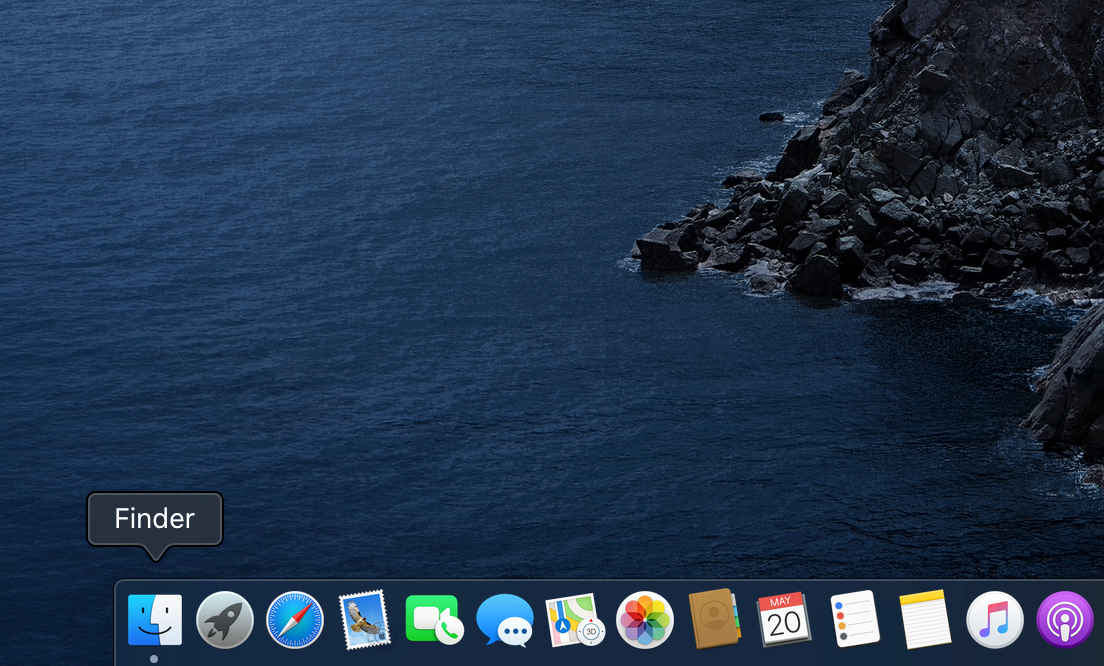
Step 1: Open 'Finder'
Click the Finder icon in the Dock at the bottom of the screen.
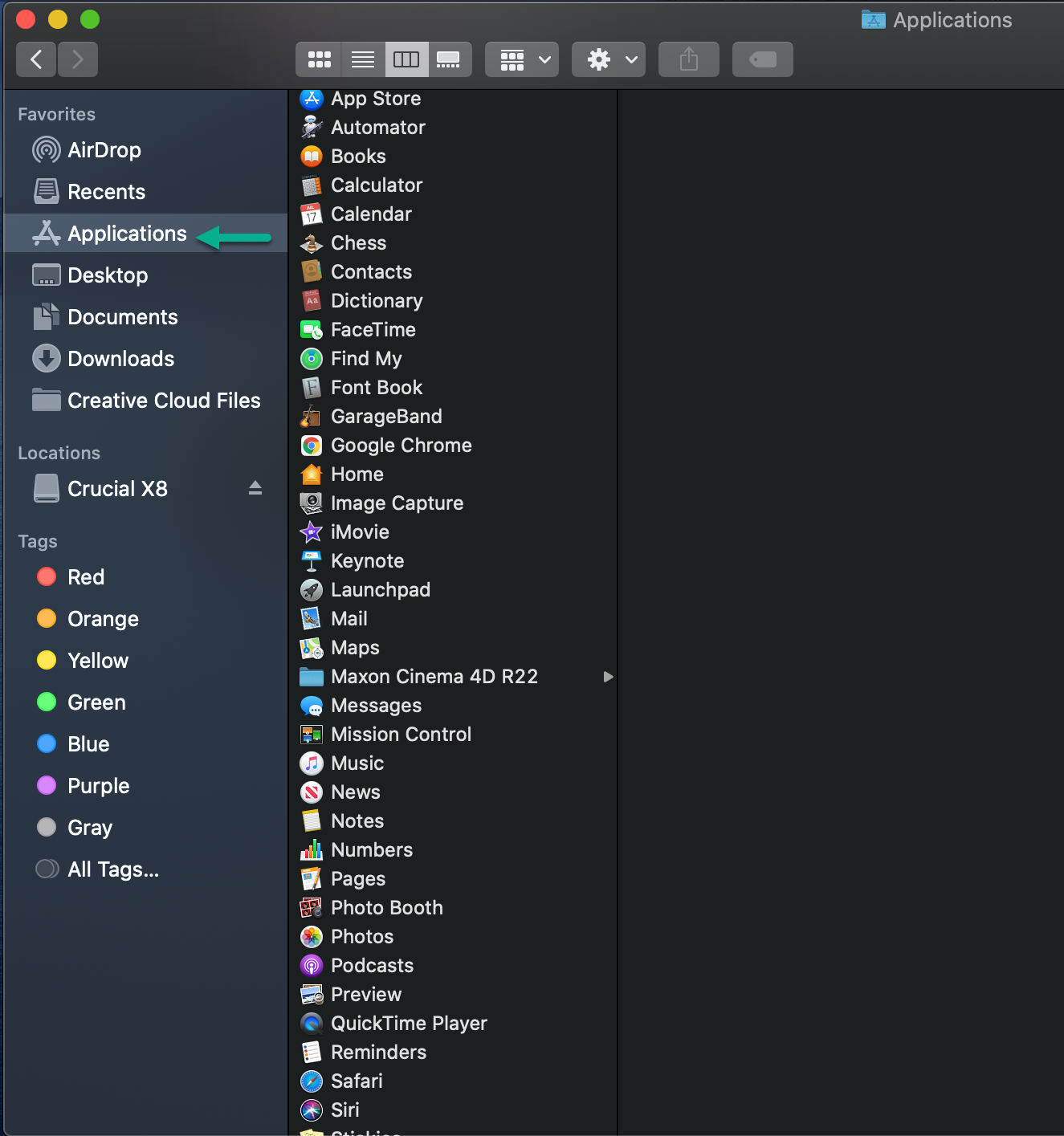
Step 2: Select 'Applications'
Select Applications in the lefthand menu under Favorites.
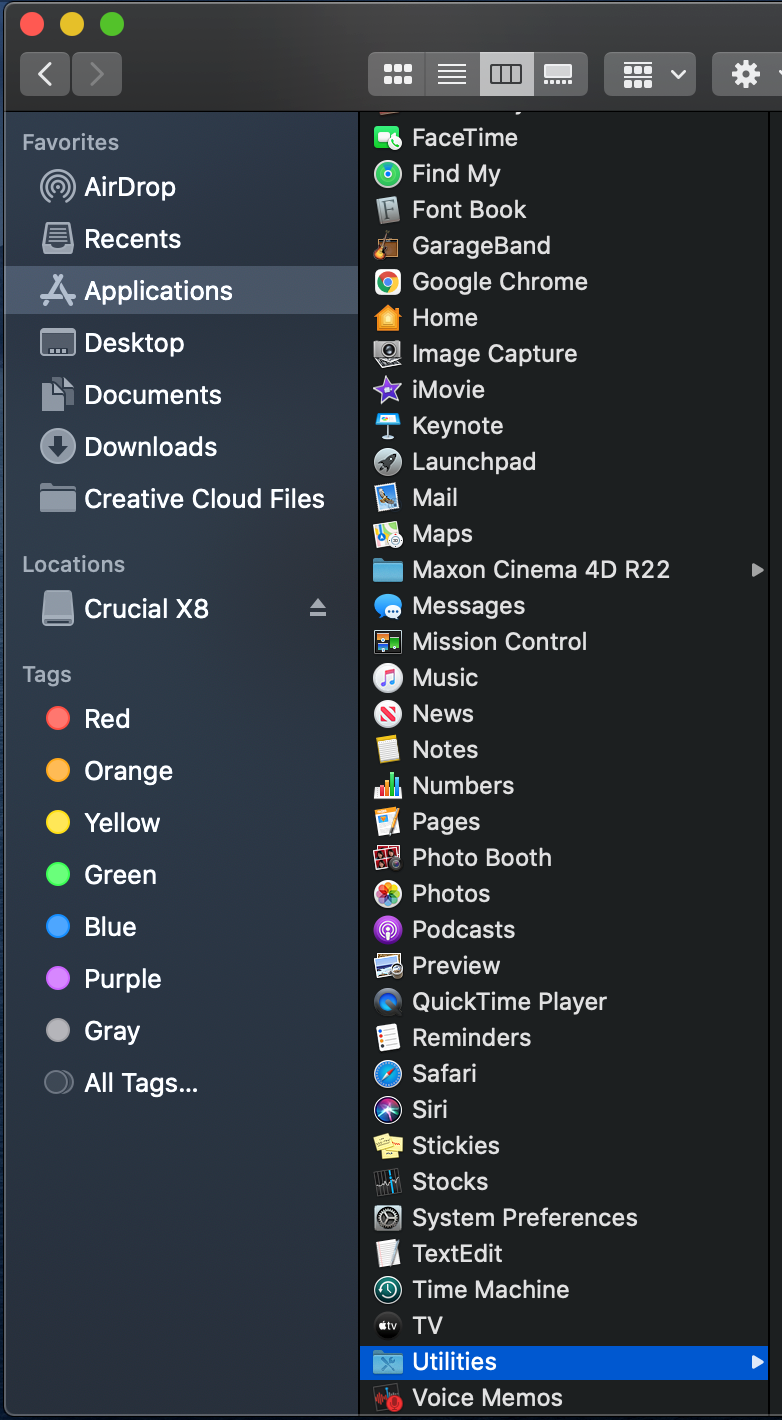
Step 3: Select 'Utilities'
Scroll down and select Utilities from the Application list.
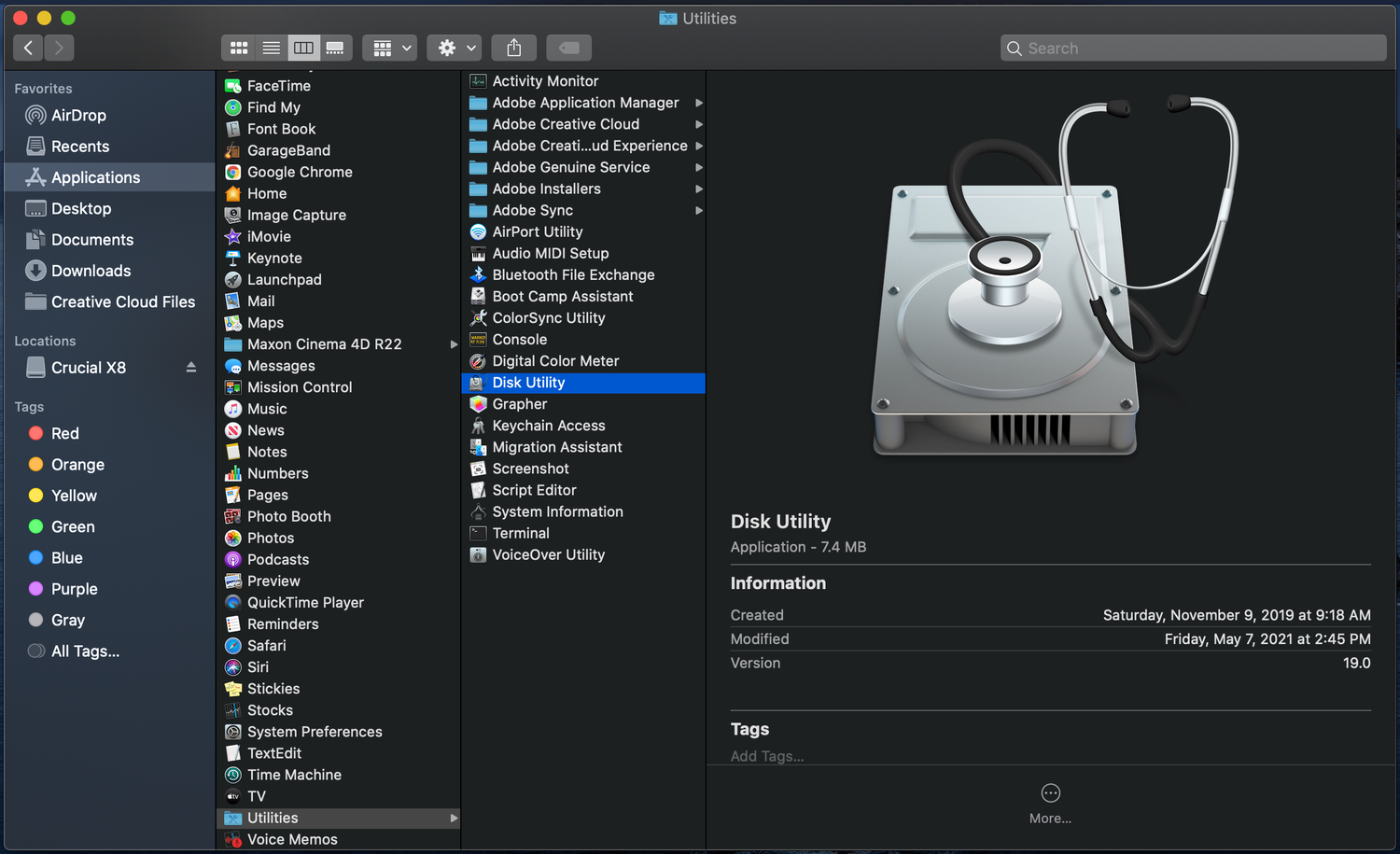
Step 4: Select 'Disk Utility'
You will see the main window with a list of available storage devices on the left and various disk management options on the right. At the bottom of the main window are storage device details, including disk description, connection type, USB serial number, total capacity, write status, S.M.A.R.T. status and partition map scheme.
Step 5: Select your USB drive
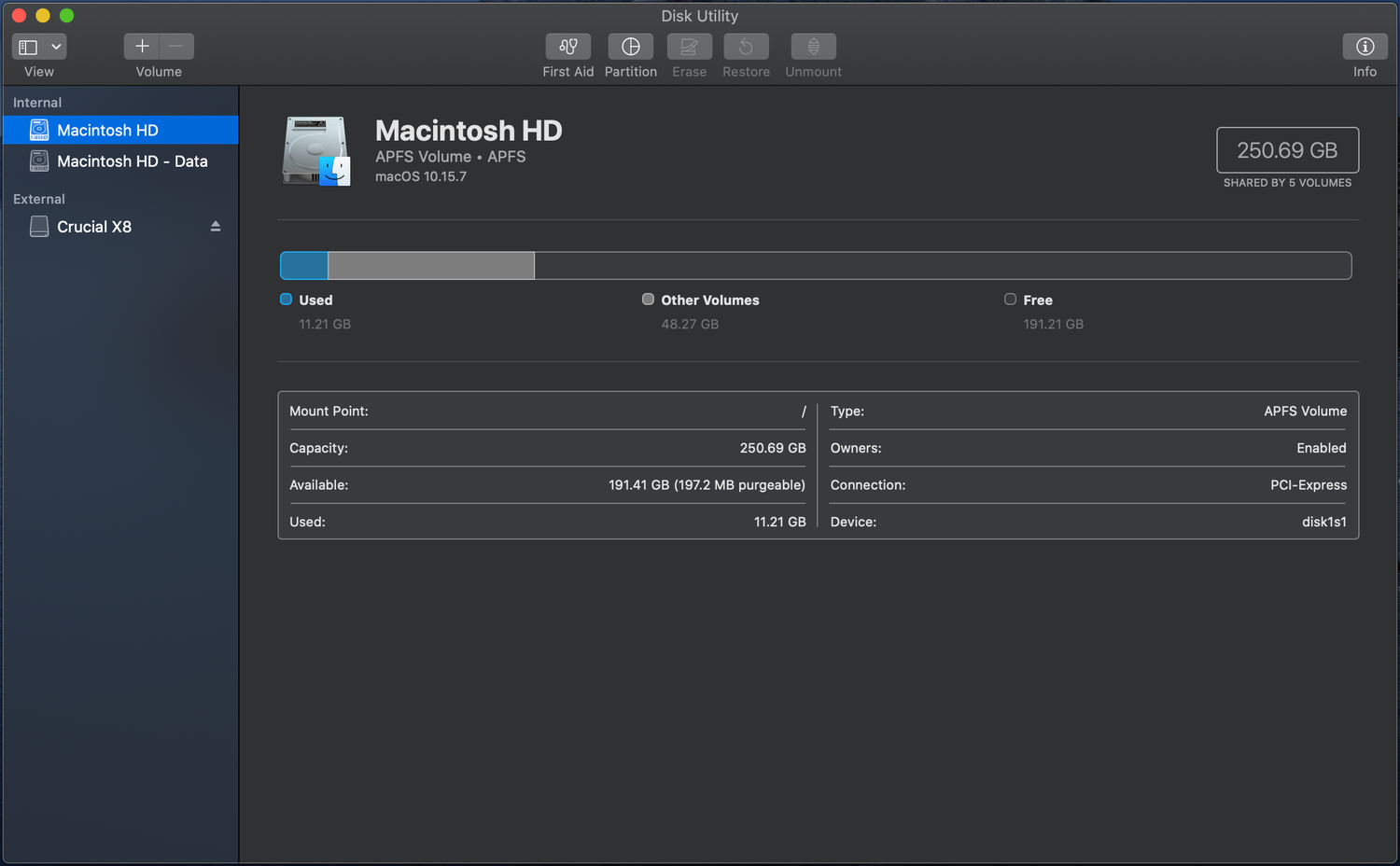
Select your USB drive from the lefthand menu.
Note: you won't be able to proceed until this step is completed.
Step 6: Select 'Erase'
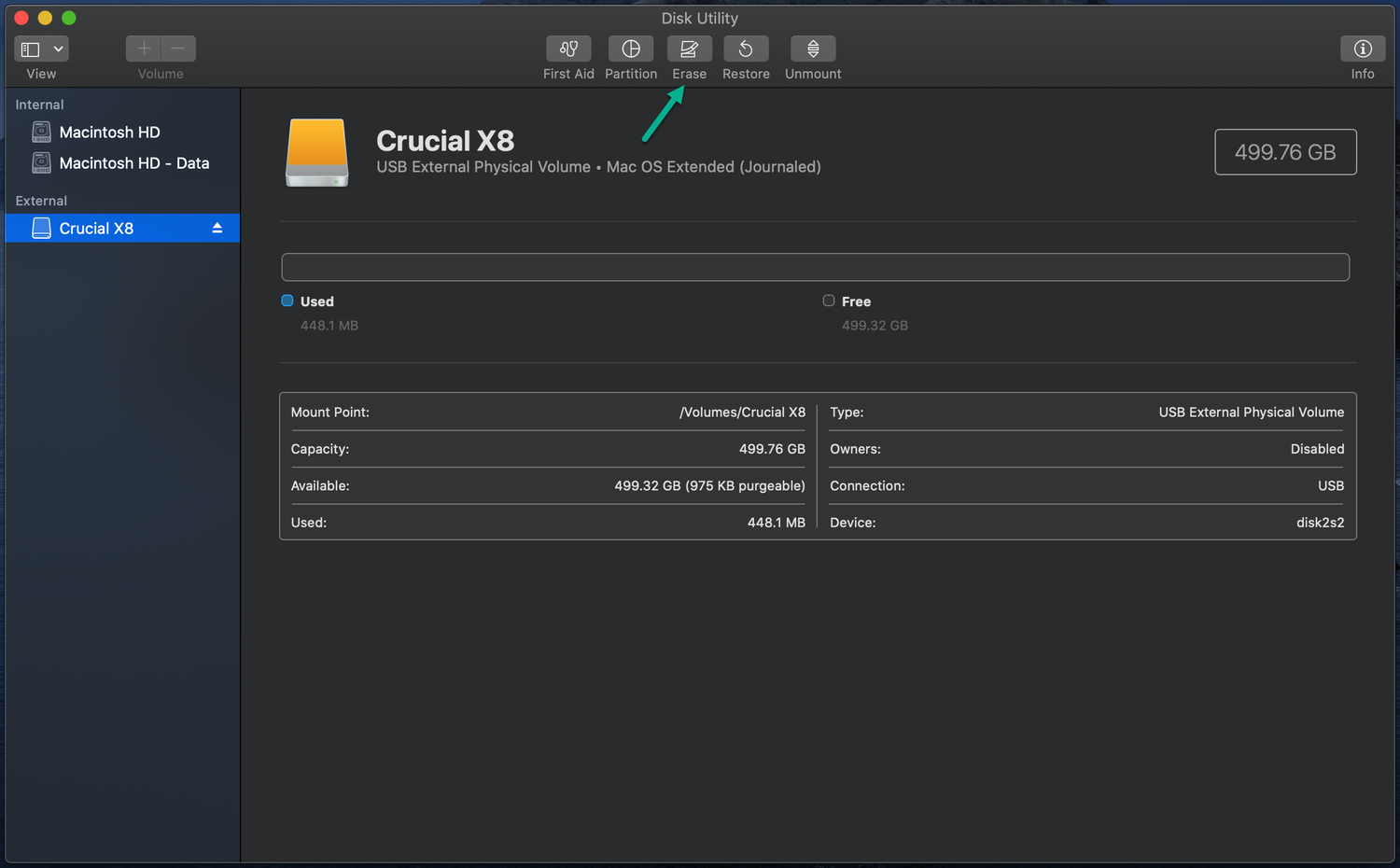
Click the Erase button at the top of the Disk Utility window to begin the process.
Step 7: Name the drive
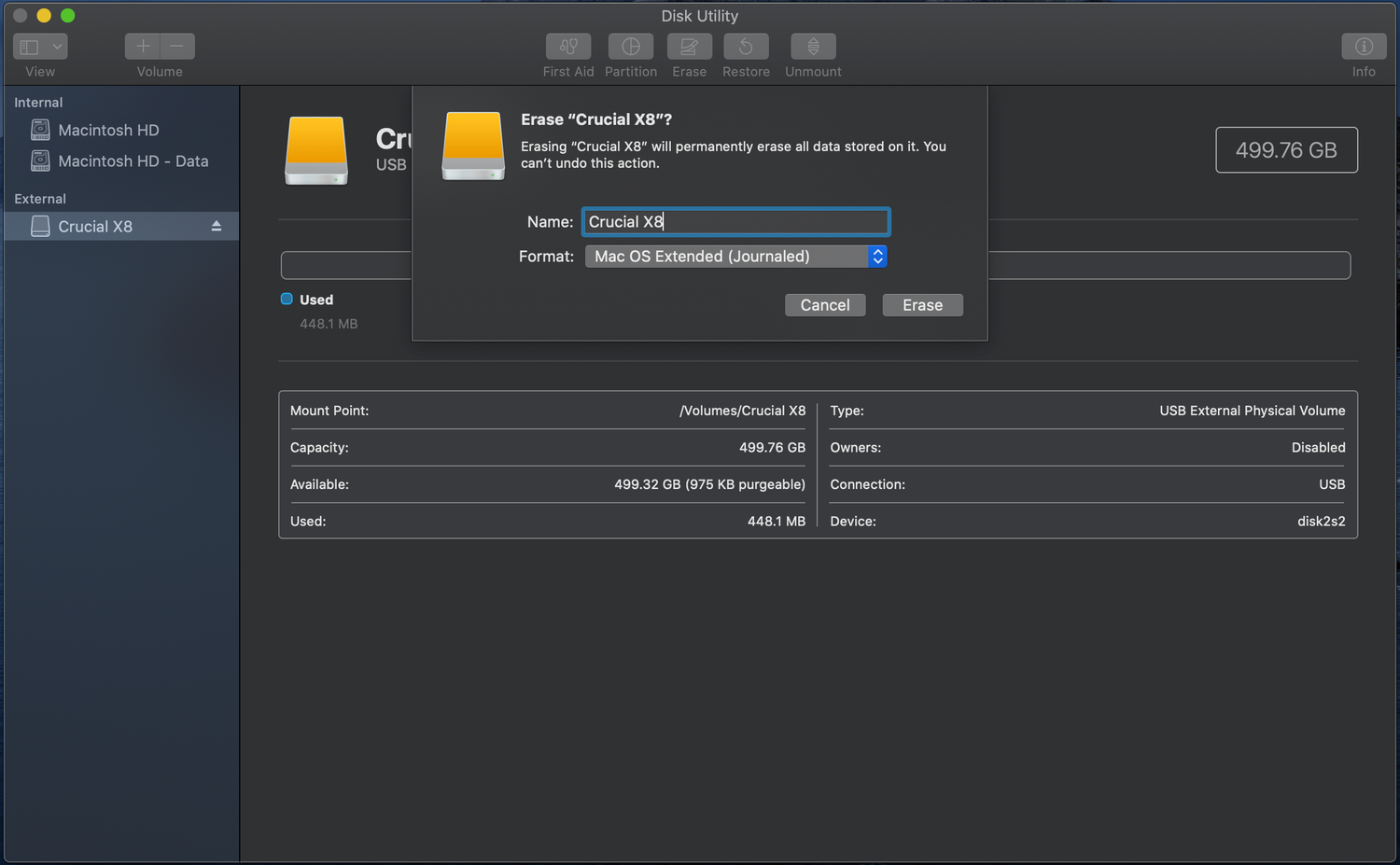
You need to give the drive a name in the Name field prior to erasing anything.
Step 8: Select 'Format'
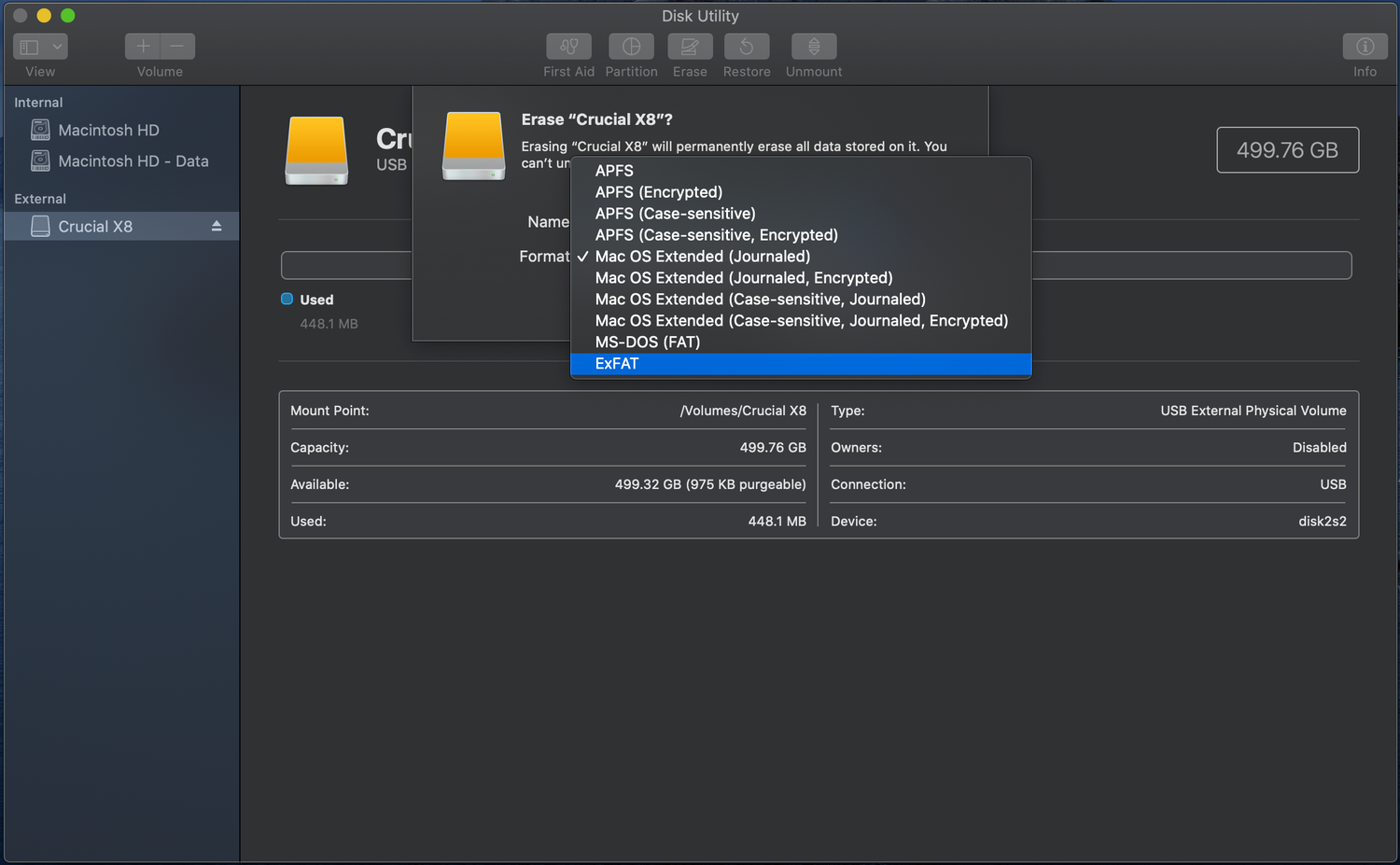
Select ExFAT for the format once you name the USB drive. Select GUID Partition Map for the scheme (unless your applications require another scheme for compatibility).
Step 9: Erase
Start the Erase and wait for the process to finish completely.
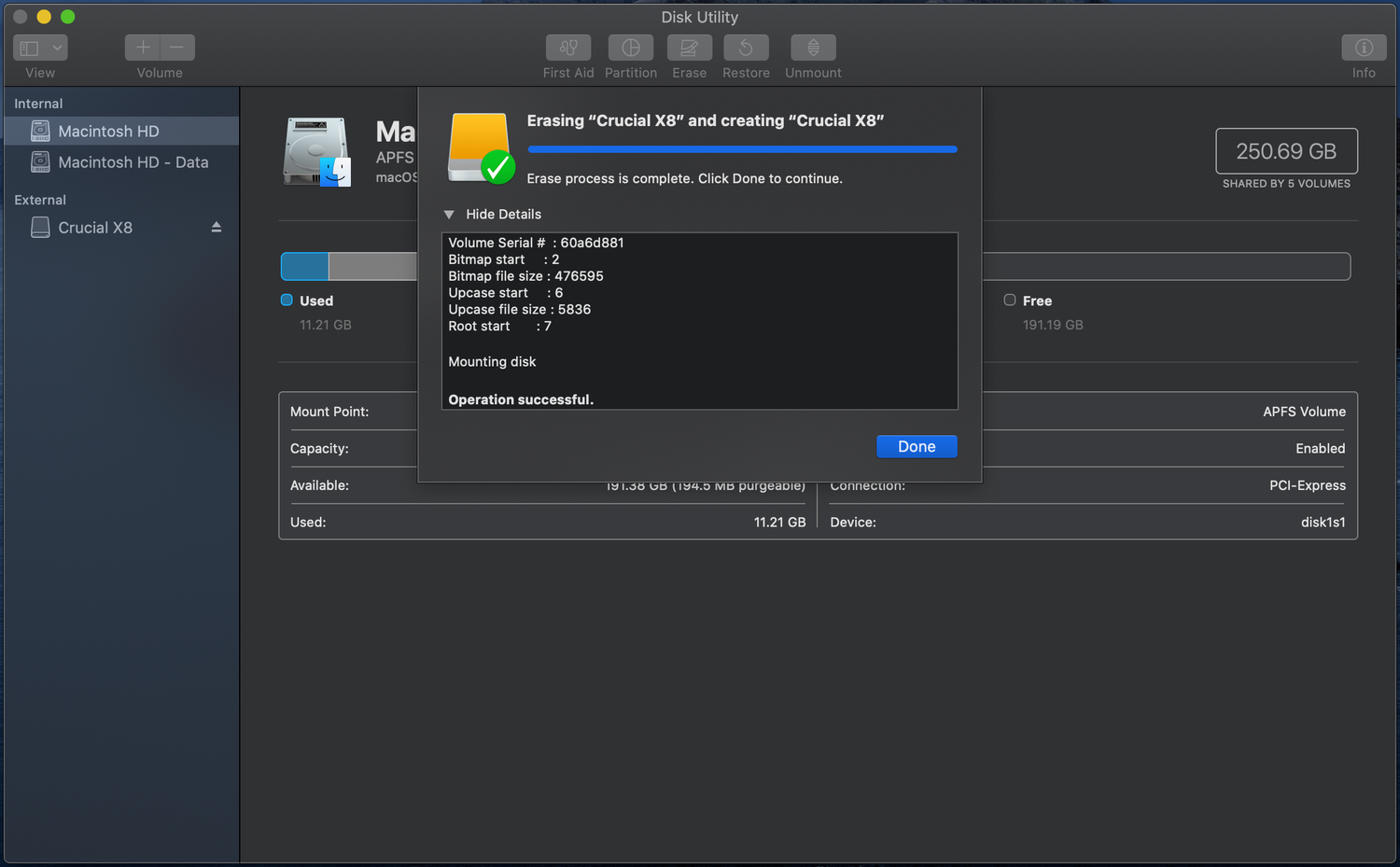
Step 10: Verify and done!
Select Erase again if another confirmation window appears. Otherwise, you are all done!
Click Done once the process is complete.
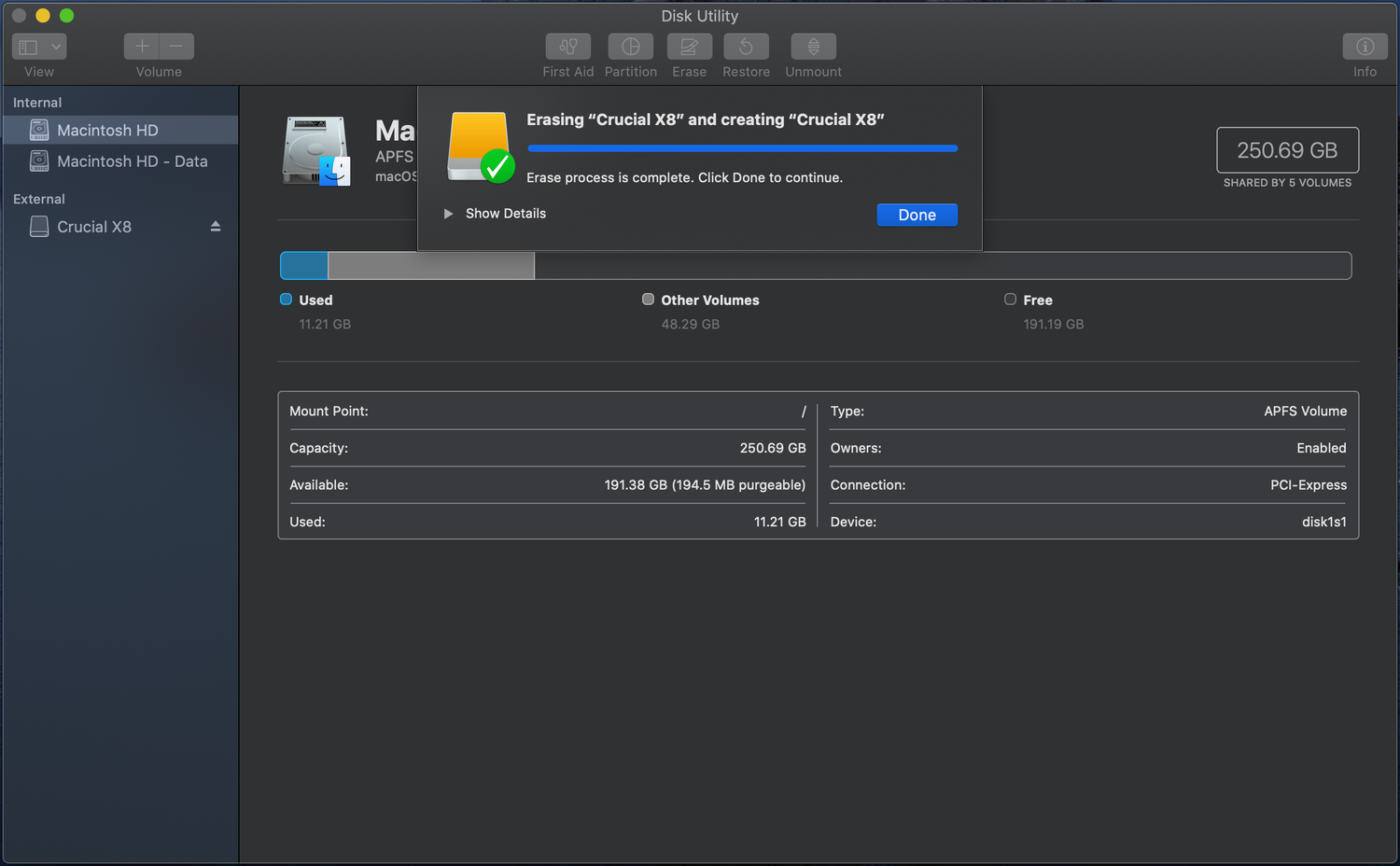
Congratulations! You should now be able to transfer files to the newly formatted flash drive. External SSDs such as the Crucial X10 Pro are another way to clear space on a Mac or transfer files from one Mac to another, often offering more capacity and faster transfer speeds.